SimBrief and Navigraph Integration
Please use the Quick Links to jump to any relevant section. For connecting your SimBrief/Navigraph Accounts, click the button below.
Quick Links
| Quick Links |
|---|
| Flight Planning |
| SimBrief Airframe |
| Setup A380X SimBrief Integration |
| Using flyPad SimBrief Integration |
| Using the FMS and SimBrief Integration |
Flight Planning
Check the Flight Planning guide for more details on Flight Planning in general.
In the world of flight simulation, SimBrief does all the flight planning for the users based on real word databases and sources. SimBrief provides on average ~40,000 flight plans to users each day and is the most commonly used tool for flight planning for non-professional flight simulation.
It is possible to use the SimBrief OFP (Operational Flight Plan) to configure and program the aircraft based on it without any special integration into the flight sim software or aircraft.
Flight Planning with SimBrief
This is best explained by SimBrief itself - SimBrief User Guide
SimBrief Airframe
Save/Copy this airframe into your fleet on SimBrief to use the A380X for flight planning.
Setup A380X SimBrief Integration
This integration does not require having an active Navigraph subscription.
Your Navigraph account needs to be configured in the flyPad EFB.
You can do this by navigating to the following page on the flyPad (EFB):
- Settings Page
- 3rd Party Options
- Select the "Link Account" button next to Navigraph Account Link
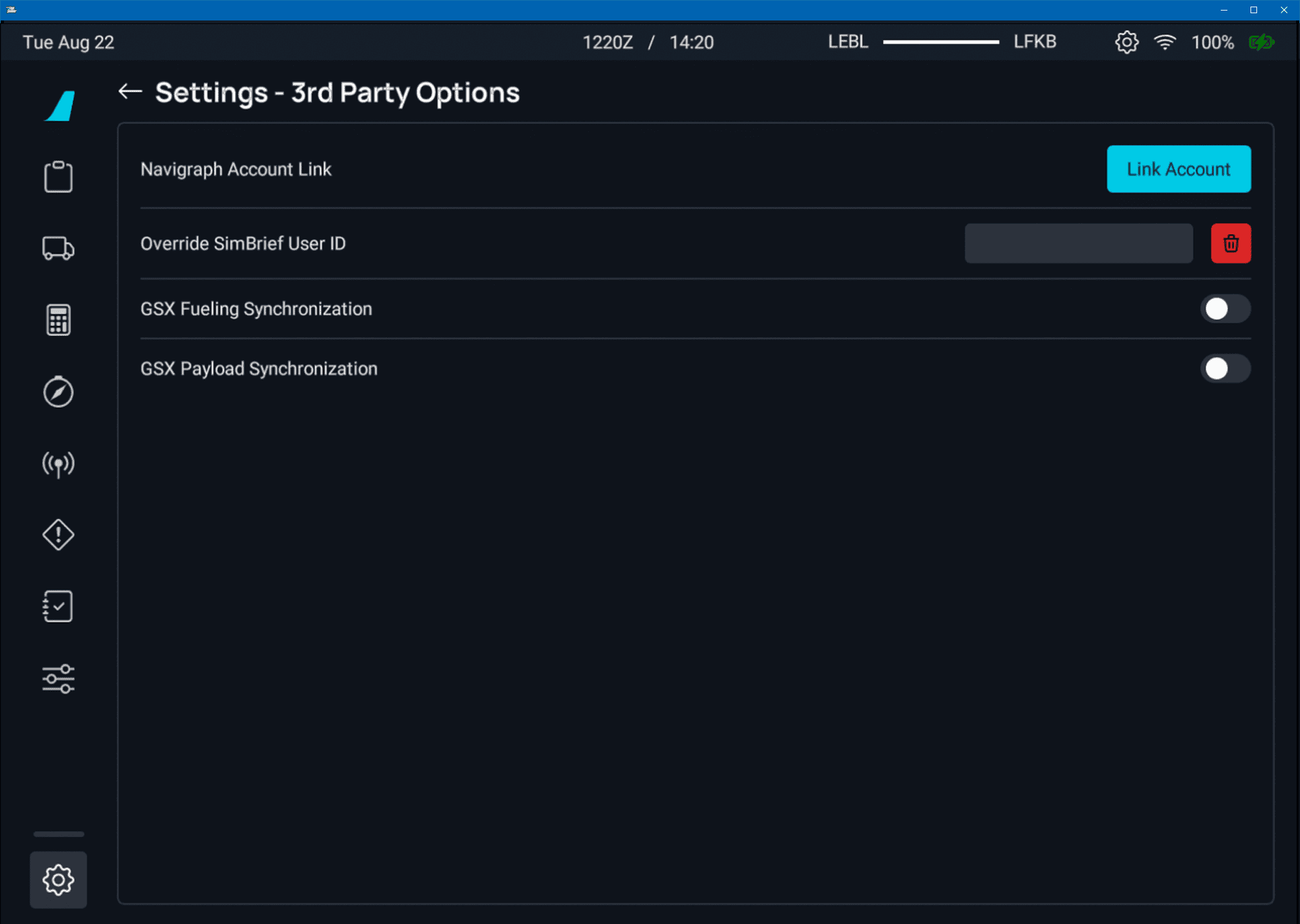
You will be presented with the following screen:
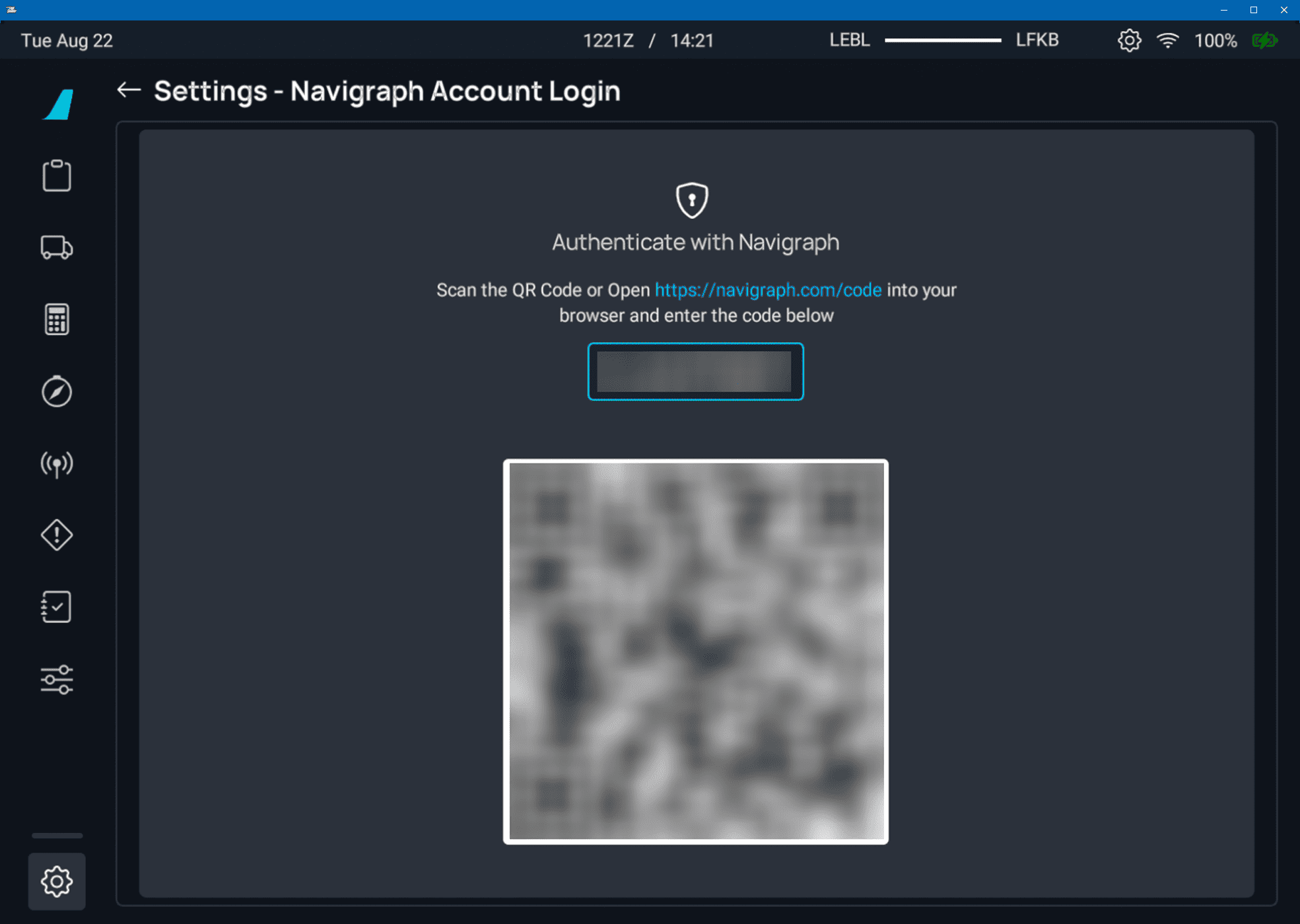
Follow the instructions above to link your account.
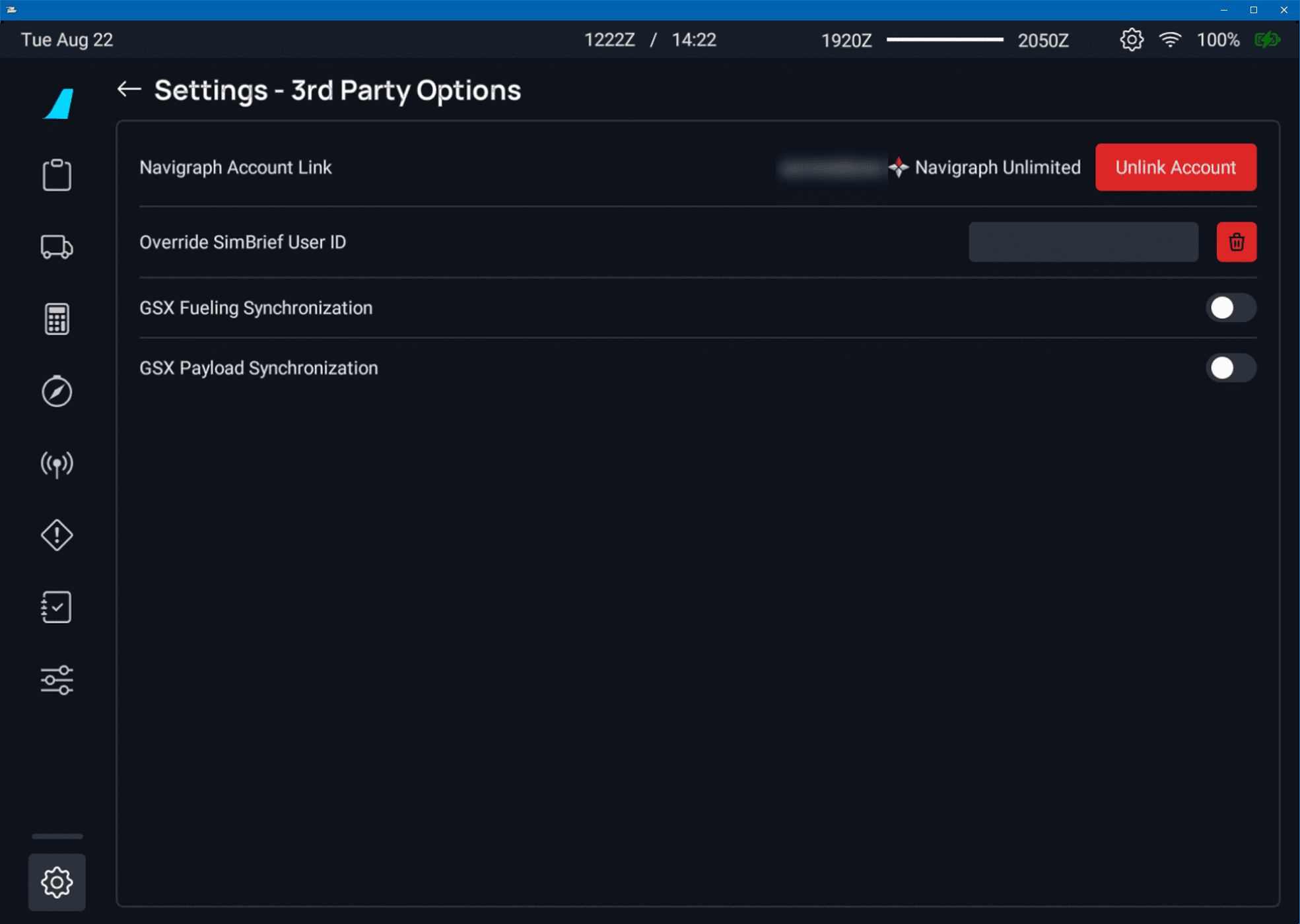
If successful, you should see your account name followed by your Navigraph account subscription status (not required) and an option to Unlink Account. As seen below:
Overriding SimBrief User ID
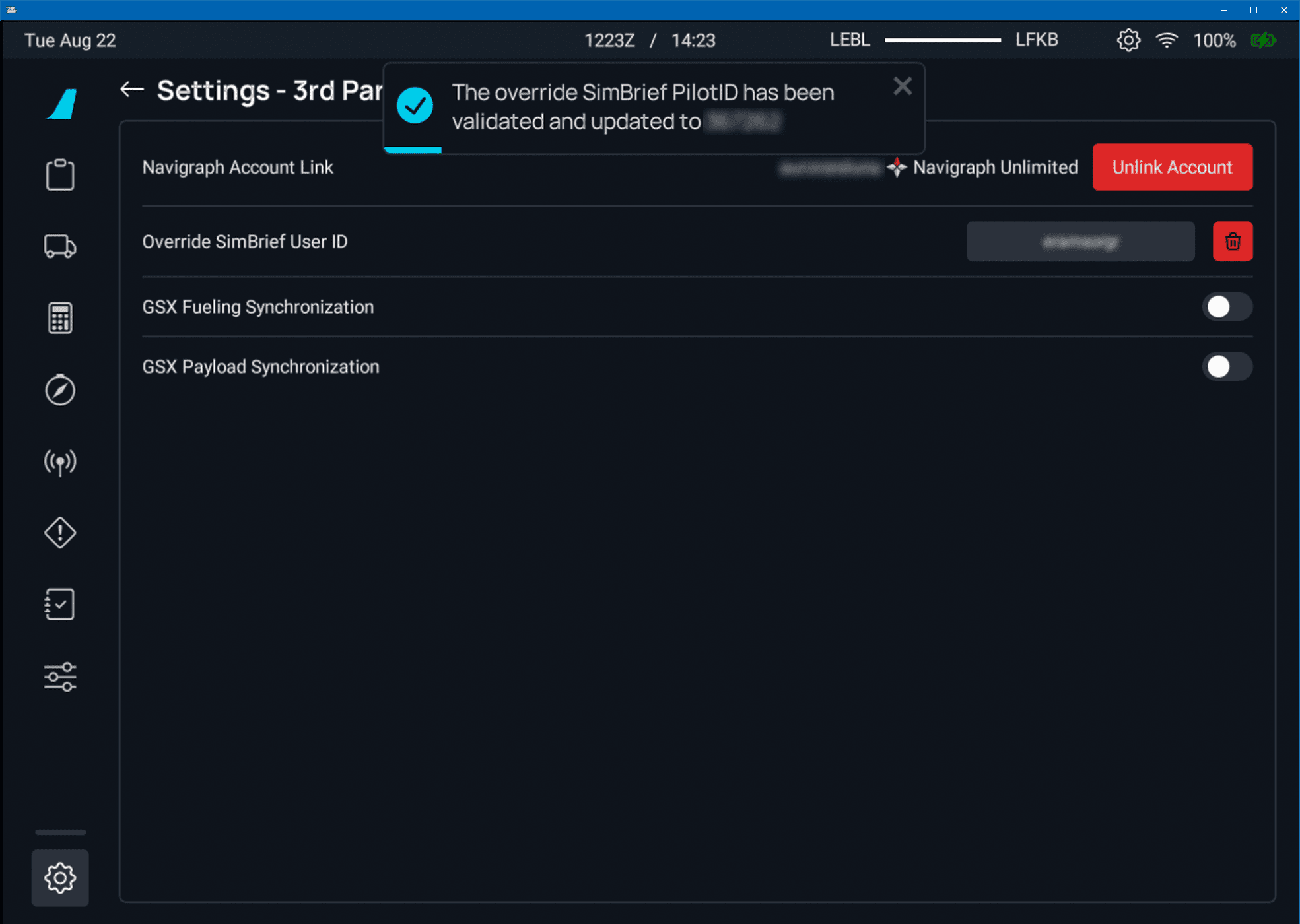
There may be situations where you would like to import data from SimBrief not specifically linked to your account, i.e., copying a streamer's or friend's flight plan to your aircraft or using an add-on for shared cockpit scenarios.
In this case you can override the SimBrief User ID by entering it in the SimBrief User ID field. This will override the linked Navigraph account temporarily until it is removed. You will be notified when the override is successful with a pop up message. Example below:
If you are still unsure of where the Settings page on the EFB is, please see flyPad Settings.
Using the flyPad SimBrief Integration
Importing the SimBrief OFP to the flyPad
See flyPad Guide - Load from SimBrief
See flyPad Guide - OFP on how to view the SimBrief Operational Flight Plan.
See Fuel and Weight on how to load fuel and payload.
Using the FMS and SimBrief Integration
Importing the SimBrief OFP to the FMS
We've included a quick method to have your SimBrief OFP automatically loaded into the FMS.
Please do not select an arrival airport on the MSFS world menu, otherwise the integration will not work.
This portion of the guide assumes that you understand how to generate a SimBrief OFP. Otherwise, read the SimBrief User Guide first.
Please Enable Detailed Navlog SimBrief Setting
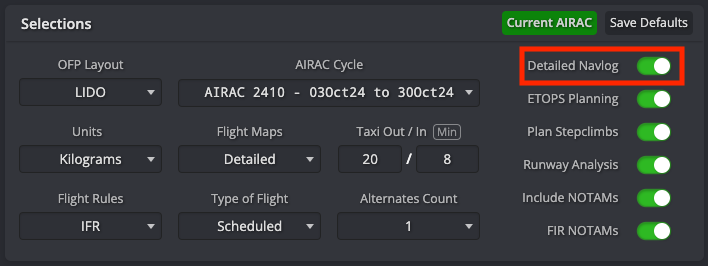
It is important when generating your SimBrief OFP to ensure that the Detailed Navlog setting is enabled.
This setting is available when generating a new dispatch. Additionally, we recommend that you save any of your preferred settings here, including Detailed Navlog as the default by clicking on Save Default. This ensures that this setting is never disabled when generating a new OFP.
If the setting is not enabled, the import function may only populate the departure and arrival airports into the flight page on the FMS.
Request Data from SimBrief and Initialize Flight Plan
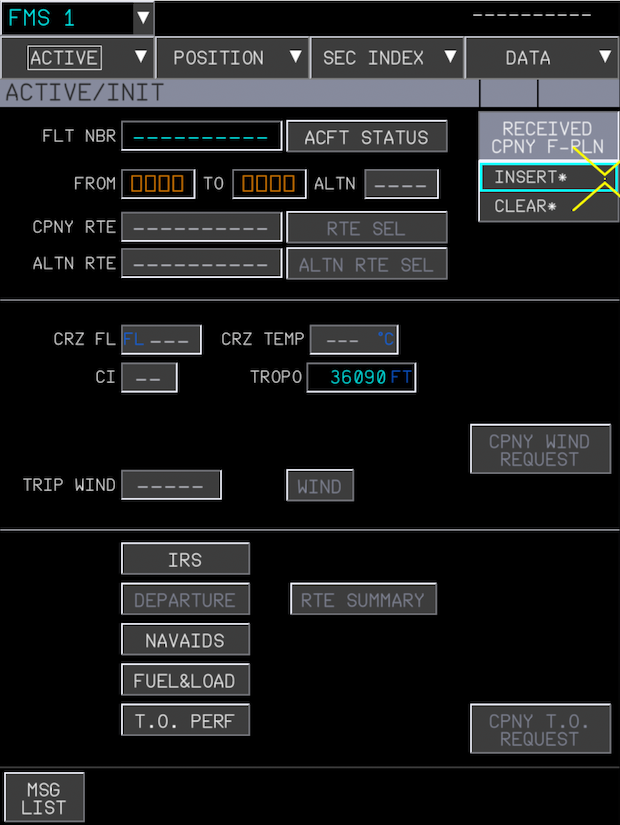
To start the process of importing data from SimBrief, open the INIT page and click on CPNY F-PLN REQUEST.
This will show a message UPLINK INSERT IN PROG, indicating that the FMS is loading the OFP. Once it is done, the CPNY F-PLN REQUEST button will change to RECEIVED CPNY F-PLN. Clicking the button will give you the option to INSERT or CLEAR the loaded information.
Click INSERT and all information in the INIT page will be automatically filled in. Additionally, the flight plan will be loaded from SimBrief directly into the FMS.
Note
RWY, SID, STAR, and APPR
The SimBrief import will not load RWY, SID, STAR, or APPR. You will need to manually add these into the flight plan. To learn how to set up the FMS, you can read the FLIGHT PLAN section in our beginner's guide.
This is because RWY, SID, STAR and APPR are dependent on factors like active runways, traffic, weather, etc. and are determined by ATC and not the pilot's flight plan. They can be changed by ATC any time before takeoff or during flight and are therefore not imported in real life aircraft either.
Wind Request
To start wind request process, click the CPNY WIND REQUEST button on the INIT page or at the bottom of the WIND page.
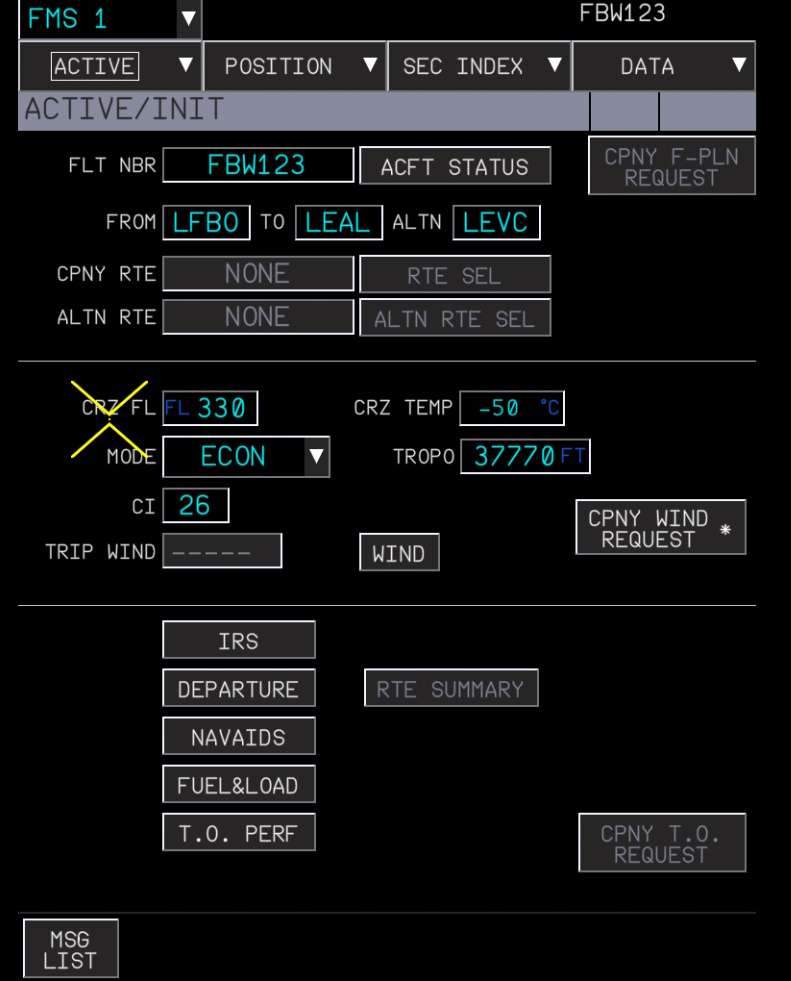
After doing so, the button label will change to REQUEST PENDING.... Once the request is completed successfully, a scratchpad message will appear with the content COMPANY WIND RECEIVED WAITING FOR INSERTION IN (ACTIVE or SEC X), depending on which flight plan the request was initiated from.
Click the 'RECEIVED CPNY WIND' button, which will give you the options to INSERT or CLEAR the wind data. Click INSERT to load it.
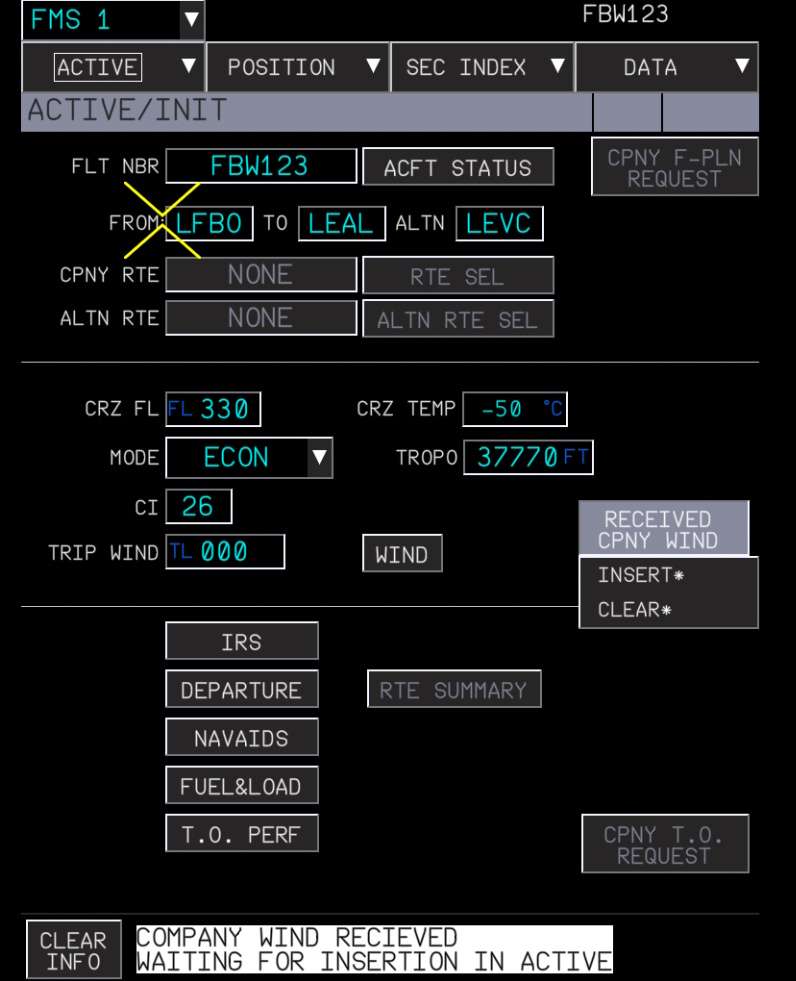
We can now check that the wind data was loaded correctly by navigating to the WIND page and verifying the winds were automatically populated.
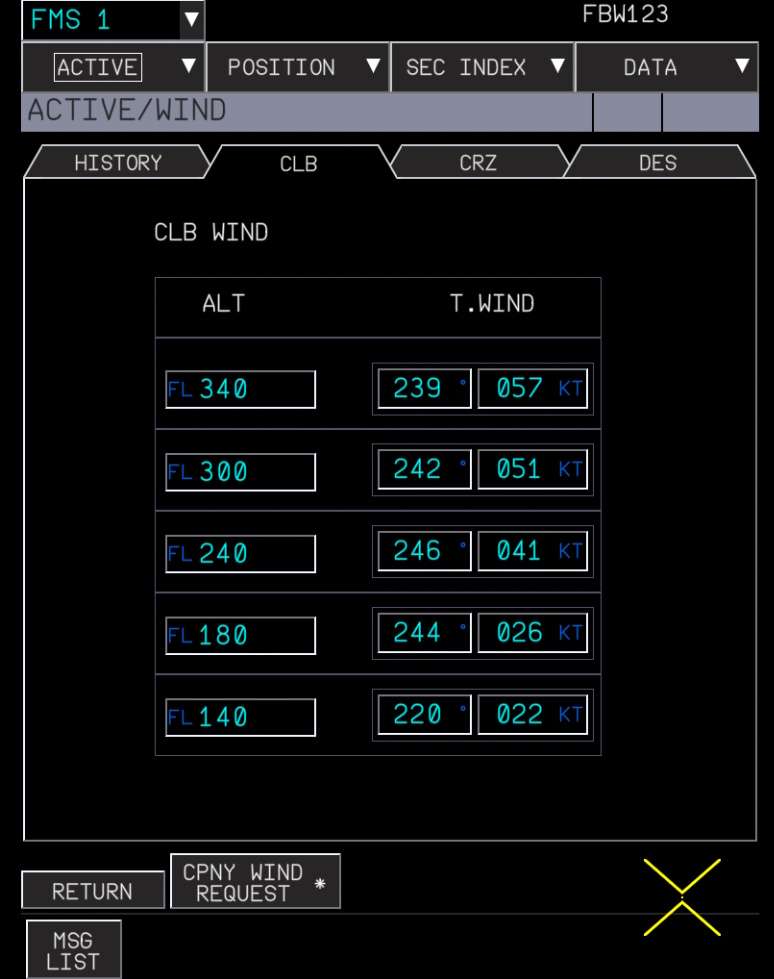
If the received wind data is invalid, the RECEIVED COMPANY WIND DATA NOT VALID message will appear. In this case, the winds should be manually inserted on the WIND page.
Important Notes
Ensure all main AC buses are powered before attempting the request. If the relevant systems are not powered, a "NOT TRANSMITTED TO ACR" error message will occur.
If a temporary flight plan exists, winds are pending insertion on another flight plan, or a flight plan request is in progress, the wind request cannot be initiated.
For the active or secondary flight plans, which were created as a copy of the active one, the wind request can only be initiated before the descent phase.
Fuel and Weight
See Fuel and Weight